Table of Contents
The Theme Colours Are Automatically Update Everywhere Custom Theme Colours Animations in the Layouts Custom Table Styles Text Levels Picture Placeholder with the Embedded Logo Isometrical Picture Placeholder Another Thing to Know About Placeholders Chart TemplatesThe Theme Colours Are Automatically Update Everywhere
Theme Colours are the ones you see in the palette if you want to change the colour of an object on your slide. They are set in the Slide Master view and associated with the certain Master. The point is that changing the colour in Theme Colours causes it to be automatically changed in every object where it was applied.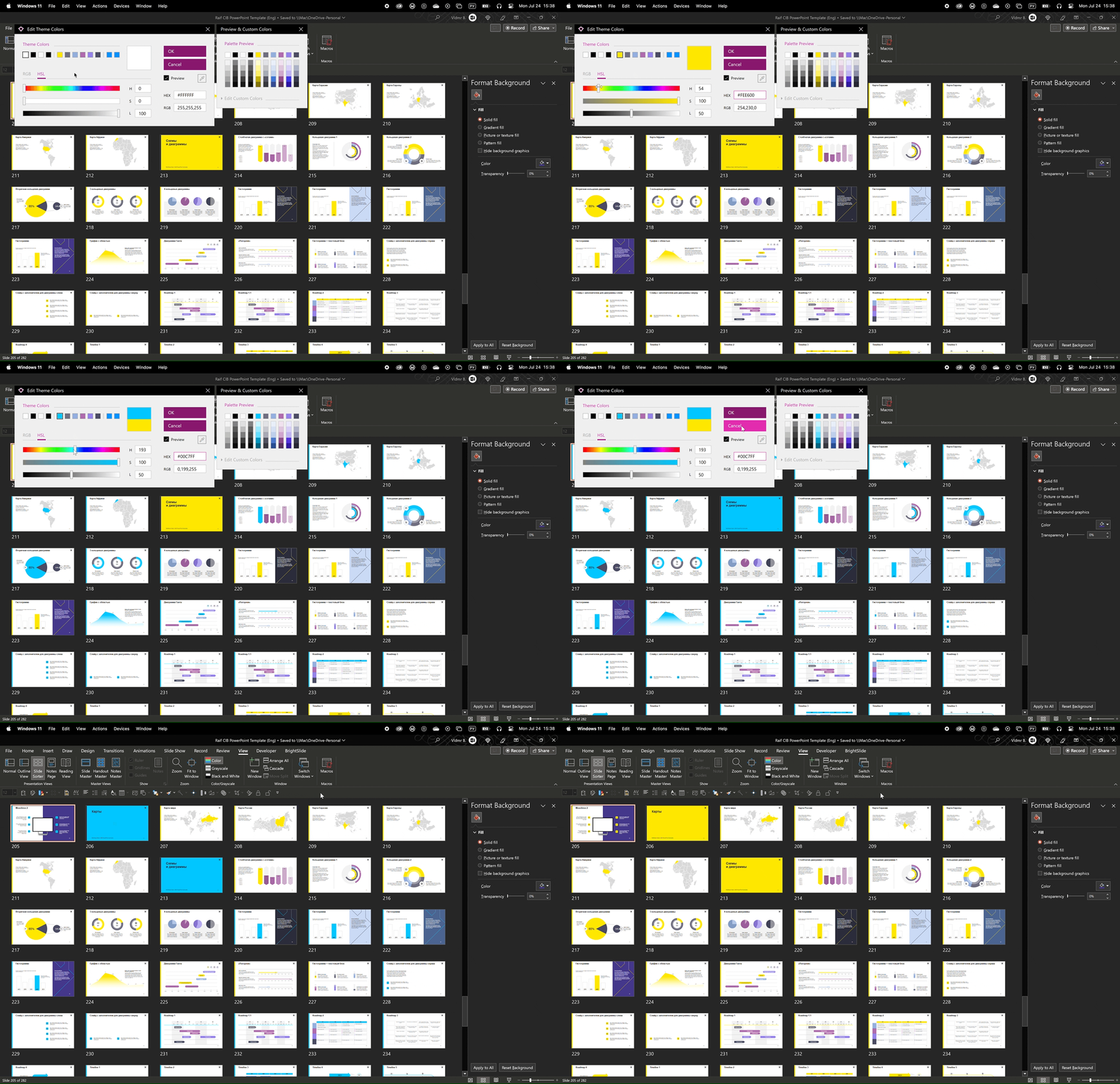 How to quickly change a colour in a template with 230+ layouts. Raiffeisen CIB Super Mega PowerPoint Template, Vlad Bugaev (pptxman).
⌘↑
How to quickly change a colour in a template with 230+ layouts. Raiffeisen CIB Super Mega PowerPoint Template, Vlad Bugaev (pptxman).
⌘↑
Custom Theme Colours
It is possibly to add up to 50 custom colours to the Theme Colours palette. The easiest way is to use BrighSlide add-in by BrightCarbon. The hardcore approach is XML editing, more information on this can be found in Brandwares blog post “OOXML Hacking: Custom Colors”.Animations in the Layouts
Animations can be added to the Layouts of your Master. For example, you can create animated Title Slide.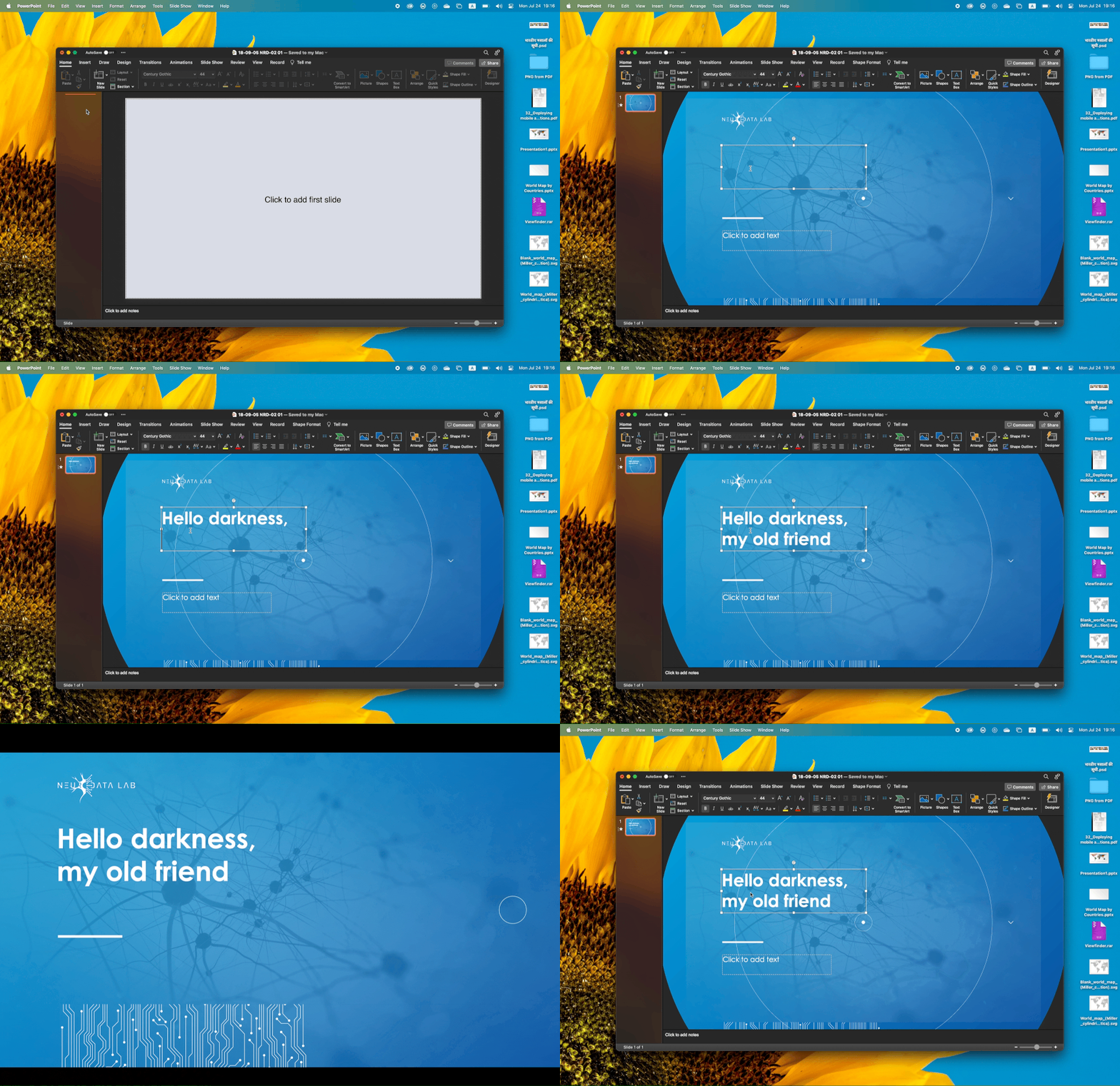 Animated Title Slide layout from the template for Neurodata Lab, Vlad Bugaev (pptxman).
⌘↑
Animated Title Slide layout from the template for Neurodata Lab, Vlad Bugaev (pptxman).
⌘↑
Custom Table Styles
Custom table styles are supported by PowerPoint, but there is no UI for them. Once again, a bit of XML editing will resolve the issue. Learn more from John Korchok’s brilliant manual “OOXML Hacking: Custom Table Styles”.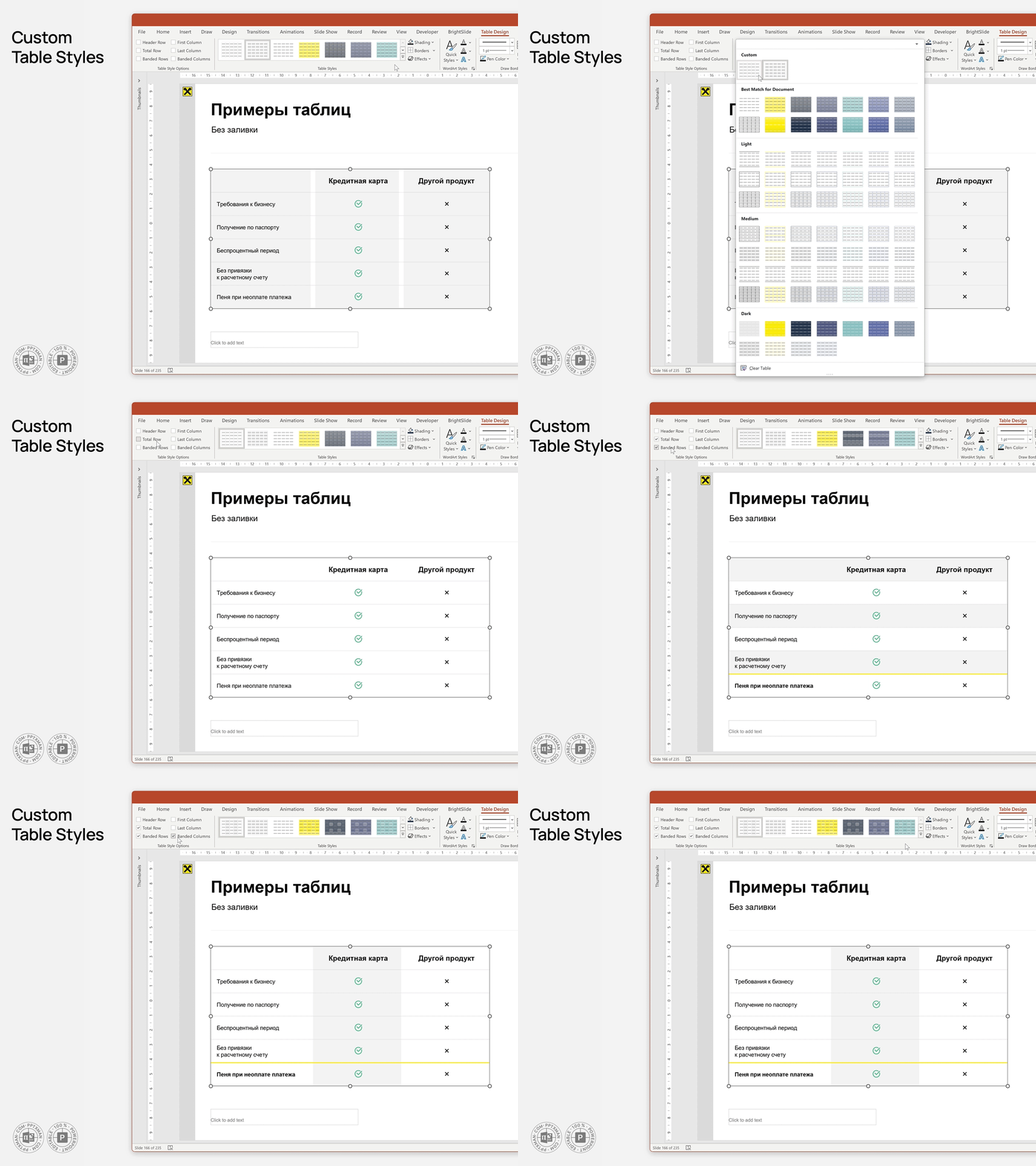 Raiffeisen CIB Super Mega PowerPoint Template, Vlad Bugaev (pptxman).
⌘↑
Raiffeisen CIB Super Mega PowerPoint Template, Vlad Bugaev (pptxman).
⌘↑
Text Levels
The template’s placeholders can have up to nine Text Levels. Basically, Text Level is a custom text style. Text levels are set up on the Master Slide (the first and the largest one in the Slide Master view). Simply format each bulleted line in accordance with your needs.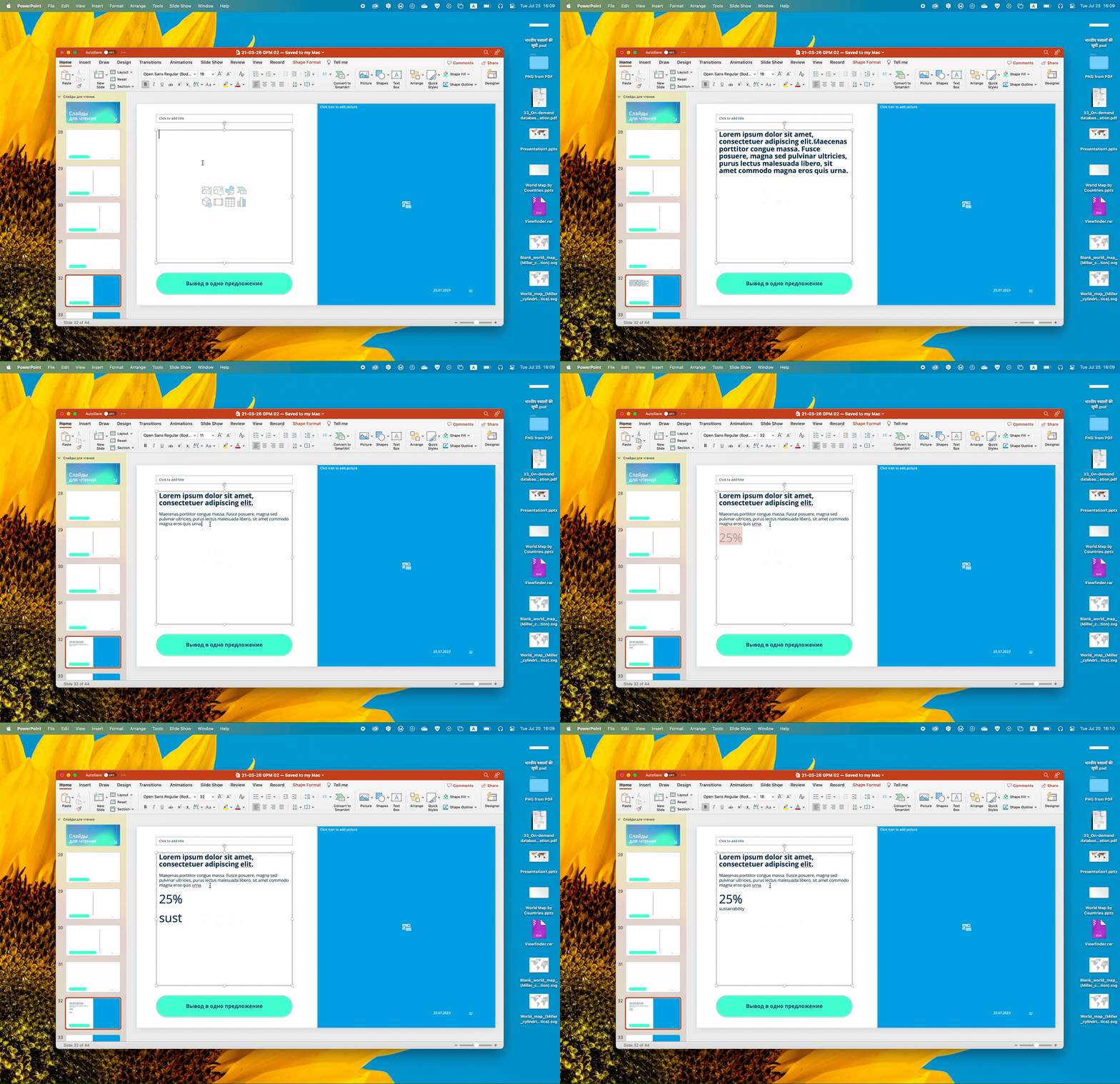 Switch between the levels by pressing Tab and Shift + Tab respectively.
⌘↑
Switch between the levels by pressing Tab and Shift + Tab respectively.
⌘↑
Picture Placeholder with the Embedded Logo
If you have a logo in SVG, subtract it from the Picture Placeholder. Every placed picture will now be branded on the insert.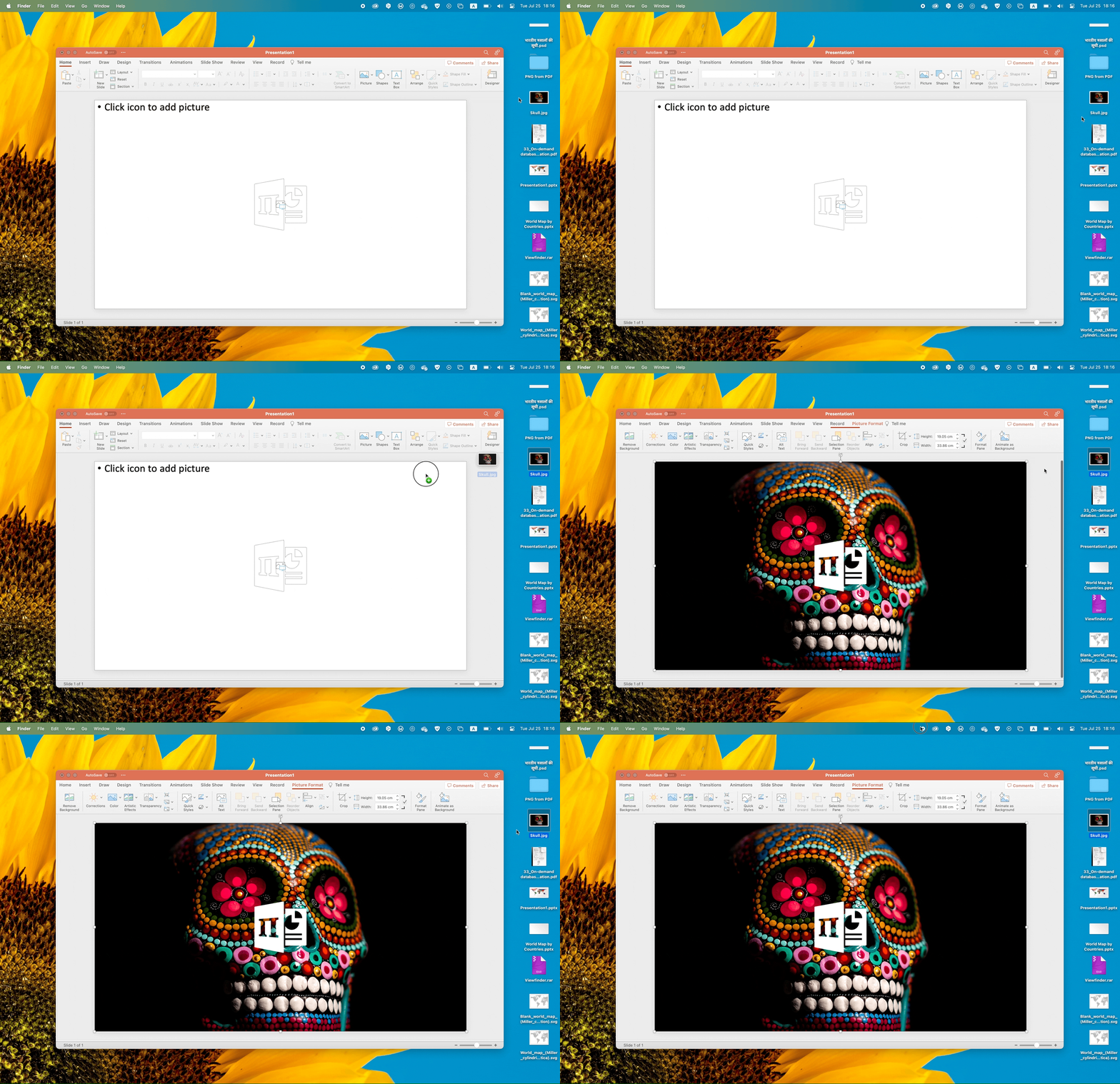 ⌘↑
⌘↑
Isometrical Picture Placeholder
You can modify Picture Placeholder almost as any other shape. Grouping is the only thing that cannot be done. Apply 3-D Rotation effect to get an isometrical smartphone or bank card mockup.Another Thing to Know About Placeholders
PowerPoint has two kinds of picture placeholders: Picture Placeholder and Online Image. The former involves inserting a file from your computer, the latter from the Internet. Another interesting difference exists, however. Picture Placeholder crops the picture to its borders, while Online Image pastes the whole picture undistorted. This can be useful, for example, if you need to make a logo placeholder.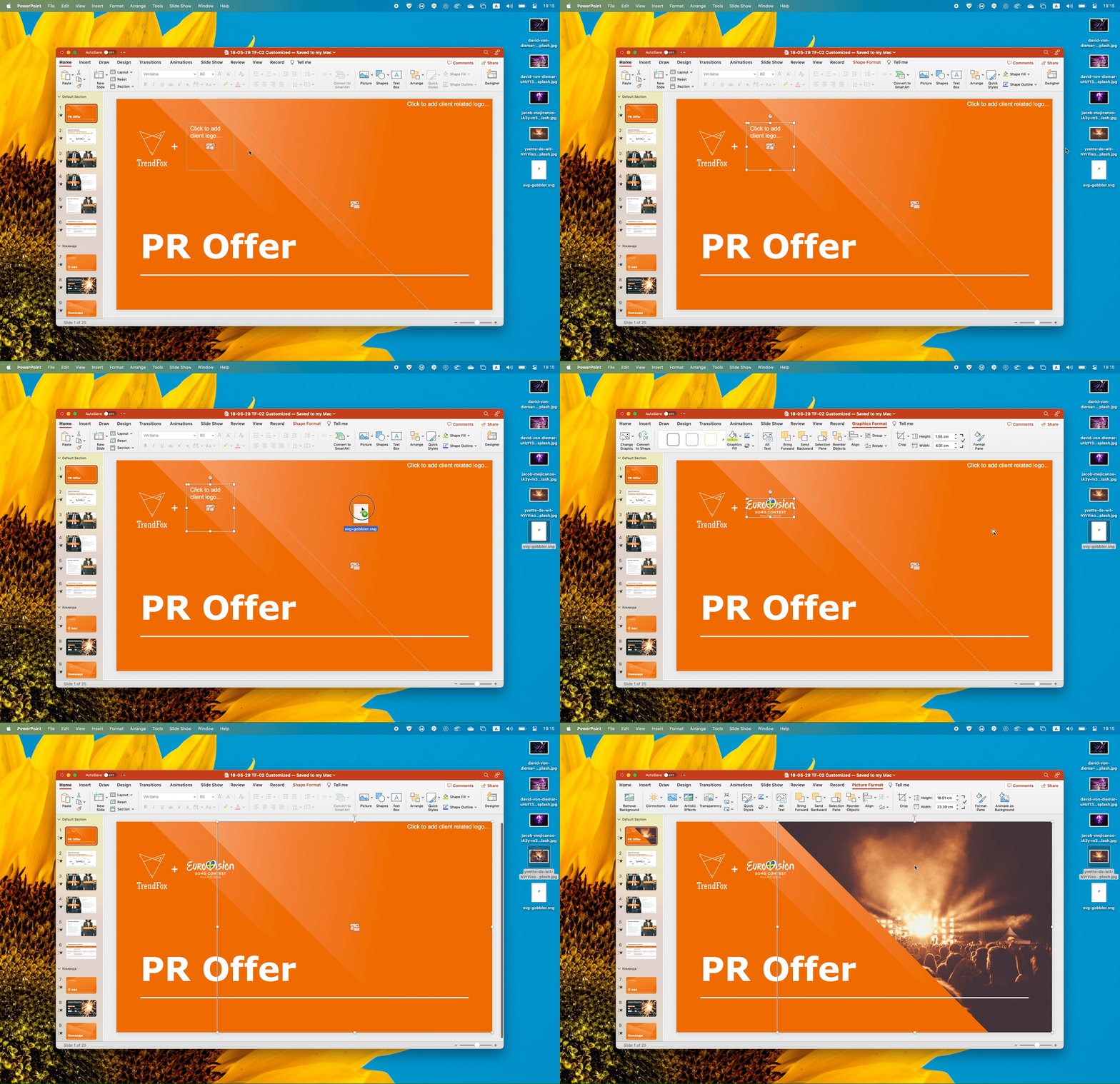 Online Image on the left, Picture Placeholder on the right. PowerPoint Template for TrendFox, Vlad Bugaev (pptxman).
⌘↑
Online Image on the left, Picture Placeholder on the right. PowerPoint Template for TrendFox, Vlad Bugaev (pptxman).
⌘↑
Chart Templates
Any chart could be used to make a template. Right-click on a desired one and select Save as Template... Now that you may apply it to another diagram, by choosing it in the Templates area of the chart insert dialog window. Useful when you need to uniformly style several comparable diagrams.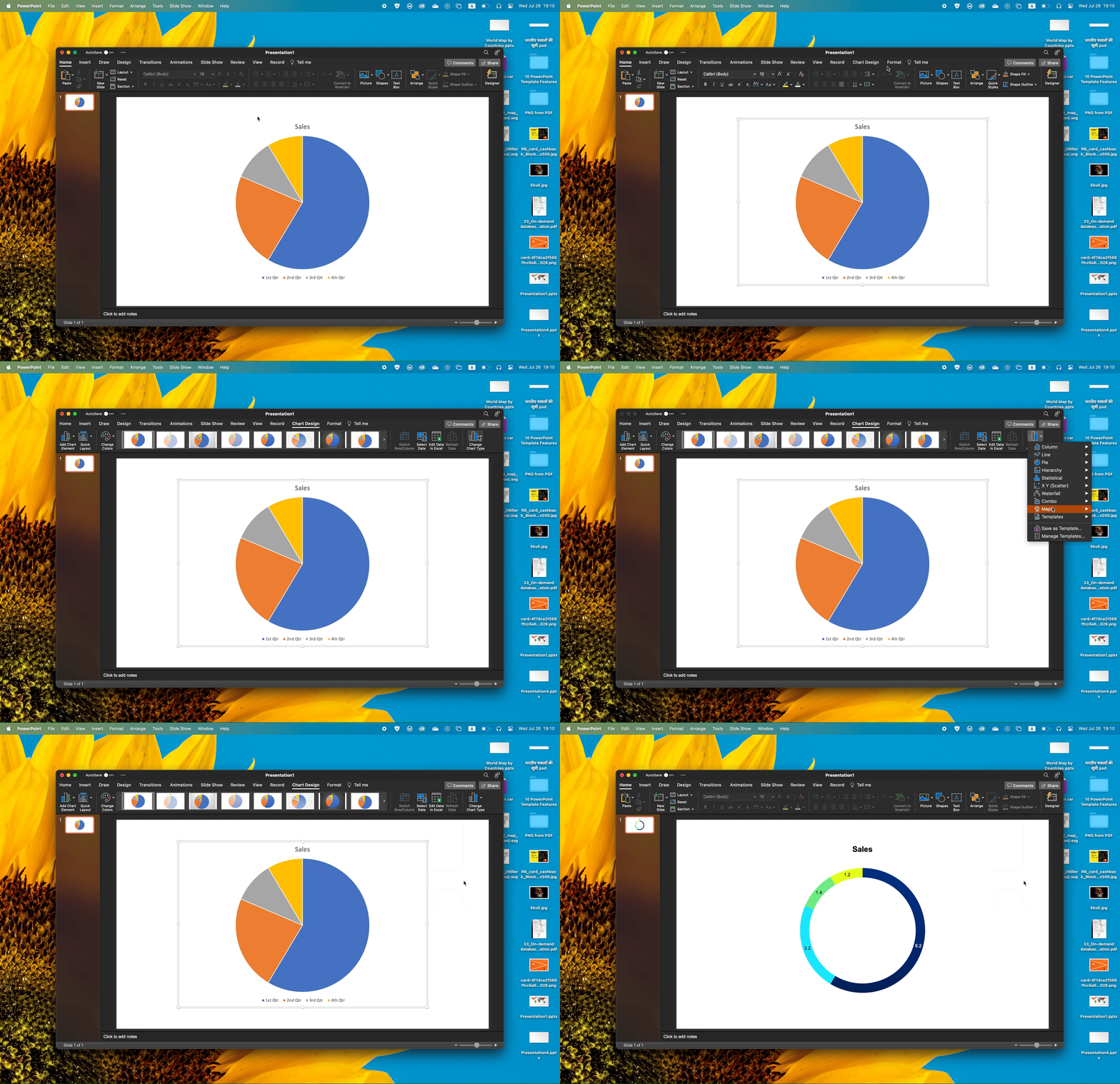 To apply a chart template, click Change Chart Type on the Chart Design tab.
⌘↑
~
#medium #powerpoint #2k24
To apply a chart template, click Change Chart Type on the Chart Design tab.
⌘↑
~
#medium #powerpoint #2k24